
- Sign into the eeger, click on the menu icon (three horizontal lines next to your name).
- Click on the Employer Dashboard button
- Click on the Employer Profile tab
- Click on the “Add Employer Profile” button.
Note: You may be required to request access prior to adding an Employer Profile
There are 8 sections to complete when adding an Employer Profile:
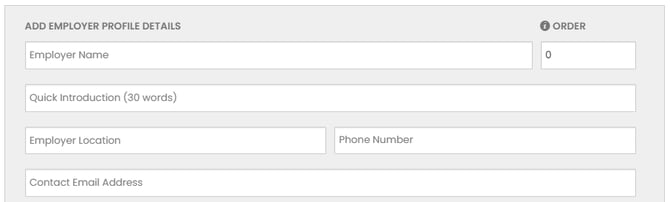
Section 1: Employer Details
- Employer name: This is the name that is displayed on the tiles on the Home page and the heading section of the Employer Profile page.
- Order: Type "1" Employer profiles will be in alphabetical order on the Employer Profile directory page.
- Quick introduction: This is a paragraph (max 30 words) that is displayed on the Employer Profile directory page and under the employer’s name in the heading section on the Employer Profile page (this is not a mandatory field).
- Employer location: The location details will be displayed on the profile and generate a map on the Employer Profile (this is not a mandatory field).
- Phone number: This will be displayed on the Employer Profile (this is not a mandatory field).
- Contact email address: This will be displayed on the Employer Profile (this is not a mandatory field).
Section 2: Website
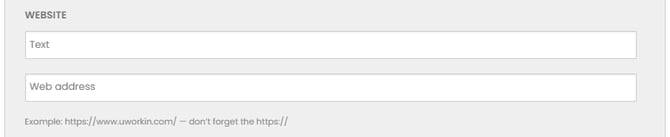
- Website text: this will be displayed on the profile as text with a hyperlink to the website address.
- Website address: the website address (ensure you include https://)
Section 3: Link the Employer Profile to the Employer’s live jobs
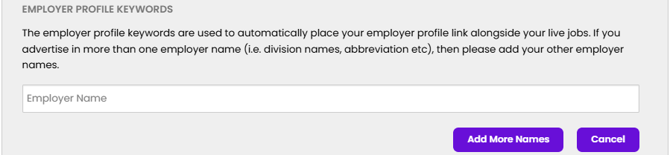
- Employer name: By adding an Employer name in this section, the Employer Profile link will be automatically added to the employer’s jobs, including jobs from the Job Feed as well as jobs posted directly to the Talent Community, that belong to the Employer.
Note: If the Employer uses various employer names, more than one name can be added. For example: If the Employer Profile is for Australian Broadcasting Corporation (ABC). Both “ABC” and “Australian Broadcasting Corporation” can be added so that the Employer Profile is linked to jobs for each variation of the Employer’s name.
Section 4: Display jobs on the Employer Profile
- Would you like to display your latest jobs on your profile? This allows for a list of the employer’s latest jobs to be displayed under the contact details on the Employer Profile. This is a yes/no option. If “Yes” is selected, an additional field appears.
- If Yes (select option below):
- Show only the jobs I post: If this option is selected, only jobs that are posted directly to eeger by the Employer will appear on the Employer Profile.

Section 5: Logo and images
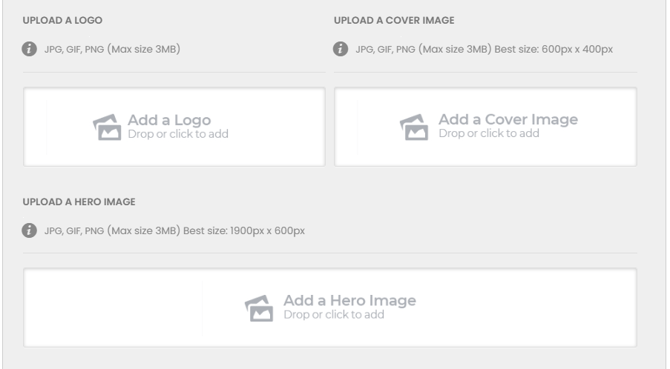
High-quality images and logos must meet the size specifications indicated, or the uploaded files will be rejected.
- Logo: The logo is displayed on the directory page and on the Employer Profile page.
- Cover image: The cover image is the image used on the tile on the home page and is also placed above the contact details on the profile page.
- Hero image: This image is the primary background image of the Employer Profile and is displayed behind the heading of the Employer Profile. The Employer’s name and tagline is displayed over the top of this image.
Section 6: Profile content
The Editor allows you to add written content to your Employer Profile, such as your Employer Value Proposition (EVP). To make your profile engaging and easy to read.
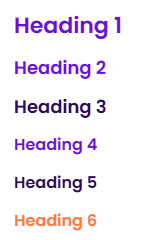
- Use Headings for Structure: Break up your content with headings for better readability. Headings can be added via the Formats dropdown in the editor.

- Add Images and Links: Include high-quality images (maximum size: 4MB) and relevant links to showcase your brand and provide additional information.
- Preview Before Publishing: Headings selected from the Formats menu will display as shown in the preview mode. Always review your profile before publishing to ensure it looks professional and well-structured.
Section 7: Videos
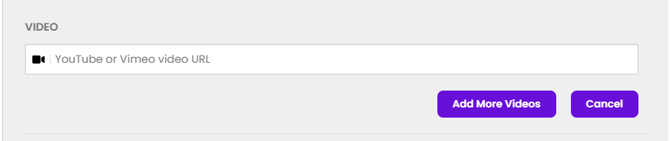
YouTube or Vimeo video URL: One or more Videos links can be added to the Employer Profile. These links will be displayed in a grid format below the Profile content.
Section 8: Previewing, Saving and Publishing
-
Preview Your Profile: Click Save and Go to Preview. Review the look and feel of your Employer Profile. If you’re happy with it, proceed to submit.

-
Edit or Submit:In Preview mode, you can continue editing or submit the profile for review. Once submitted, the profile will be checked and approved by eeger administration before going live.

Important Note
It is not possible to save a draft of your Employer Profile within the platform. If you need to keep a draft for internal review, we recommend adding “(DRAFT DO NOT POST)” after your Employer Name in the Title field. This allows you to share the profile with your team or make further edits.
When you’re ready for the profile to go live, simply remove “(DRAFT DO NOT POST)” and submit. eeger administration will then review and approve your Employer Profile.